Noober Info
All Fixesguides and tutorialsAndroidguides and tutorialsAndroid & Apps Fixguides and tutorialsAndroid Appsguides and tutorialsAndroid Apps and Gamesguides and tutorialsAndroid Solutionguides and tutorialsAndroid Tips & Tricksguides and tutorialsAppleguides and tutorialsCustom MODguides and tutorialsCustom ROMguides and tutorialsData Recoveryguides and tutorialsFeaturedguides and tutorialsGadgetguides and tutorialsHow to Androidguides and tutorialsInformationguides and tutorialsInternet and Webguides and tutorialsiPhoneguides and tutorialsLaptopsguides and tutorialsMagiskguides and tutorialsMicrosoft Windowsguides and tutorialsOperating Systemguides and tutorialsPhone Fixesguides and tutorialsRecoverguides and tutorialsRootguides and tutorialsSmartphonesguides and tutorialsTabletsguides and tutorialsTech Newsguides and tutorialsWindows Solutionguides and tutorials
Home Blog All Categories Blog Authors About Publication Contact Us
TELEGRAM
Articles
Noober Info
EXPLORE
Trending Guides
AI & ROOT Tools
Tech Blog
Author Mode
STAY UPDATED
Push Notifications
Add to Google Add to News
Weekly Newsletter
Buy me a Coffee
TRY AI GENERATOR
Home
Information
Article
Messages for Web: Google Messages...
Discover Source
July 14, 2021

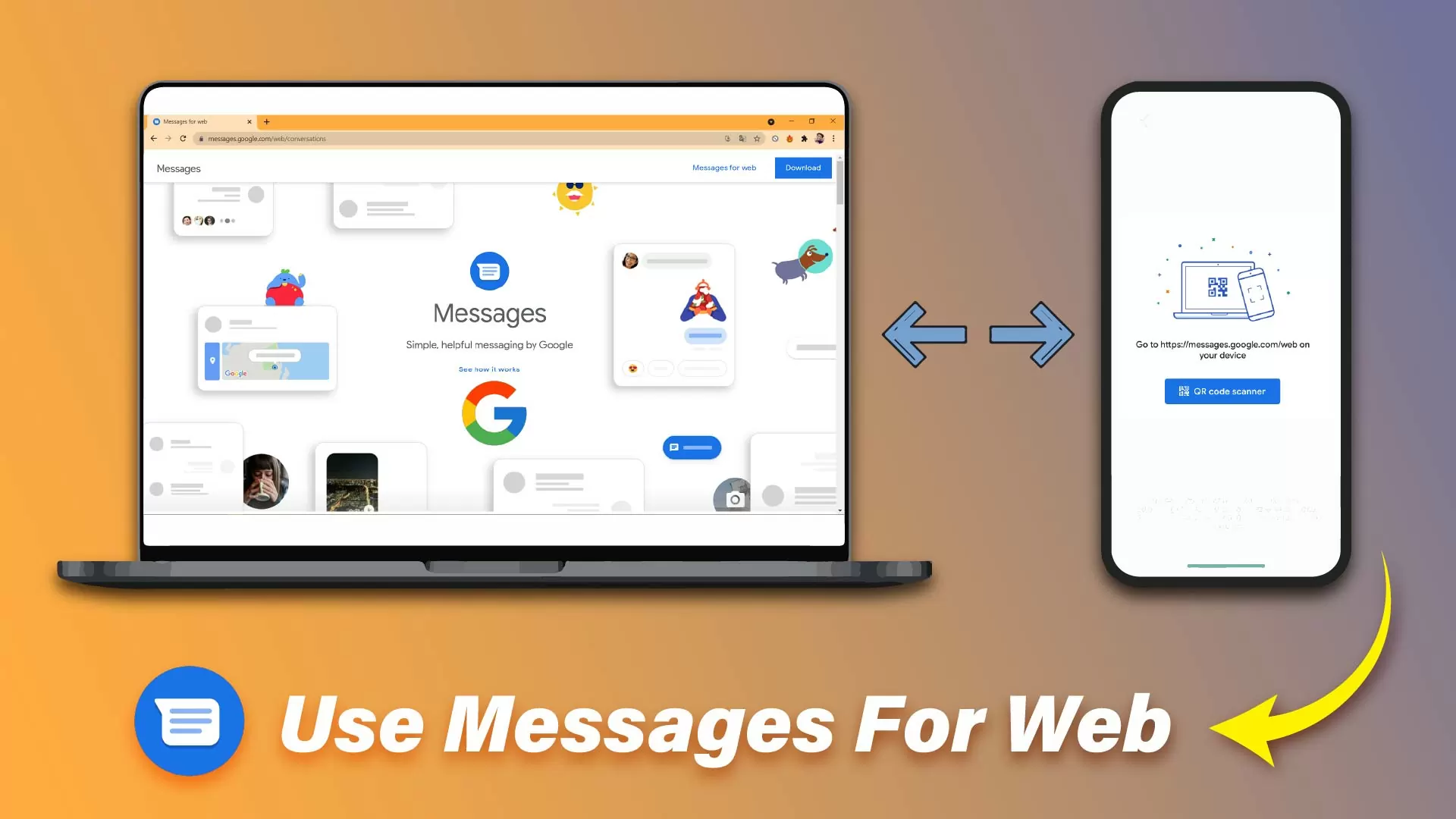
Messages for Web: Google Messages for Web: Android Messages for Web - How to use Messages for Web?

Are you always on Computer but you have to check messages in your phone? Try this method to view text messages on Computer using Messages for Web.

PUBLISHED July 14, 2021
UPDATED July 14, 2021
Ujjwal Murmu
Ujjwal Murmu CREATOR
Global • 4 min read
Google Preferred Source
LISTEN TO THIS ARTICLE Ready to listen
Informationcategory guides
Messages for Web: Google Messages for Web: Android Messages for Web - How to use Messages for Web?
Table of Contents 2 sections
Hide
01
Steps to use Google Web Messages:
02
Step 4: Open Google Messages App or Messages App.
SPONSORED AD

What is Google Messages for Web? What is Messages for Web or What is Android Messages for Web? - Open Messages for Web

So if you have questions like What is Google Web Messages or What is Messages for Web, then let me answer your questions.

Google Messages for Web or, Messages for Web, in Short, is an integrated way to send messages to people via your computer. This feature works only with Google Messages App by Google. It is a web text message feature by Google.

If you have any other than Google Messages App, you won't benefit from this feature. You must have a Google Android Messages app on your phone to use Messages for Web or Google Messages on PC.

But even if you don't have Google Messages on your Android Phone, you can get it from Google Play Store and then set Google Messages App to the default app. You can then use Google Messages on PC and check Google Text messages online.

RELATED ARTICLE How to clear the cache on Android 10 and Android 11

How to use Google Web Messages? - How to use Google Web Messaging? - How to use Web Text Message?

google messages Google Android Messages

SPONSORED AD

So you may have pretty much understood What is Google Messages for Web and how does it work. Now would you like to try it out yourself? If yes, then follow these steps to use Messages for Web Google.

But first, let me tell you that you must have Mobile data Turned ON, or you must have an Internet connection both on your PC and Android Phone to use Google Messages for Web. Without an Internet connection, this feature won't work. So let's get started.

RELATED ARTICLE How To Increase Internet Speed of Jio and Airtel

Steps to use Google Web Messages:

Step 1: Download and Install Google Messages App from the Google Play store if you don't have it on your phone. ( Optional if you already have the Messages App )

Step 2: After installing Google Messages App on your Smartphone, set the App to Default Messaging App. ( Optional if you already have the Messages App )

Step 3: After that, Allow the Messaging App to run in the background by unrestricted from System Settings if it is not by default. (Double Check) ( Optional if you already have the Messages App )

Step 4: Open Google Messages App or Messages App.

Step 5: Click on the three dots in the top right corner inside the Google Messages App.

Step 6: Choose and click on the "Device Pairing", inside the Google Messages App.

Step 7: Now, first go to this web address https://messages.google.com/web/authentication on your computer or laptop. You can do this if you have another smartphone.

Step 8: Now, in your Android Phone Inside the Google Messages, Click on "QR Code Scanner" inside the "Device Pairing"

Step 9: Scan the QR Code of Messages for Web on your Computer Screen, or if you are doing with another smartphone, then scan the QR Code on another smartphone.

Step 10: Click on "Remember this Computer" before scanning the QR Code if you don't want to do all the steps again, or you can leave it as it is. You can also save the Remember Computer or Device even after you have scanned the QR Code.

Messages for web chrome extension - Messages for Web Extension Plugin

messages for web chrome plugin Messages for Web Chrome Plugin

If you are also looking for Messages for web chrome extension, then yes, it is also available if you would like to use a Plugin instead.

Messages for web chrome extension plugin is like an Application or Android App running inside Chrome. But you may still need an internet connection to use Google Android Messages for Web or Messages for Web.

The process to pair your Android Message to the Messages for Web is the same as that's above.

RELATED ARTICLE Android Setup Wizard Keeps Stopping

FAQs

Is Google messages for Web safe?

Yes, Google Messages for Web is fully secured as it uses Signal Protocol for its encryption implementation. Google Messages for Web is just like WhatsApp and Signal App. Messages App is a simple portal to send messages to people.

Is Google messages for Web secure?

Google uses the Signal Protocol for its encryption on Google Messages App. So yes, Google messages for Web is fully secure.

SPONSORED AD

How do I check my Google text messages online?

SPONSORED AD
SPONSORED AD

To check your text messages online, you would need to use Google Messages for Web. The process to connect to Messages for Web is given above.

Add Noober Info as a preferred source on Google Discover

Was this article helpful?

Did you like the article, or was it helpful? Let us know your opinion by voting on 'Yes' or 'No'. Provide your feedback as well if you would like!
Ujjwal Murmu

Ujjwal Murmu

Founder & Lead Creator Verified Author

Passionate Android enthusiast, custom ROM developer, and tech blogger.

ENJOYED THIS ARTICLE?

Join our newsletter to get the latest Android guides, rooting tutorials, and custom ROM updates directly in your inbox.

Browse in Tags

Messages for Web Google Messages for Web Android Messages for Web Open Messages for Web What is Android Messages for Web What is Google Messages for Web How to use Google Web Messages How to use Google Web Messaging How to use Web Text Message Steps to use Google Web Messages
Sponsored AD
Previous Post How do I create a Magisk zip file: How to convert Magisk APK to Magisk Zip Installer?
Next Post Asus Zenfone 8 launch date in India: Zenfone 8 AKA Asus 8Z Confirmed to launch in India

Comments (0)

Syncing authorization...

Related Documentation

UFS 4.0 Technology announced – developed by Samsung Information Ujjwal Murmu
May 17, 2022 3 min read

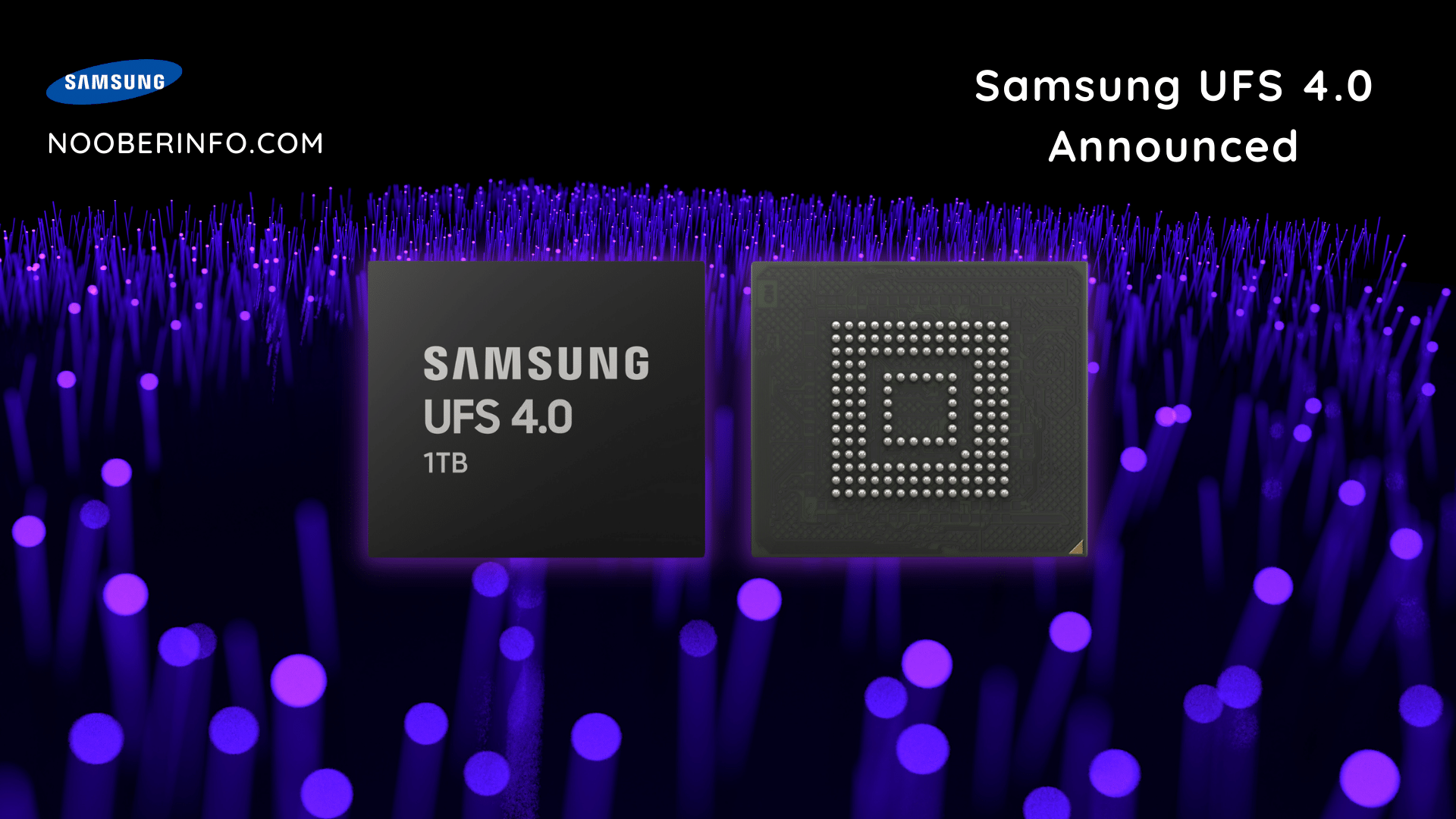
UFS 4.0 Technology announced – developed by Samsung

By Ujjwal Murmu
Effect Of Internet Speeds on Various Applications Information Ujjwal Murmu
March 30, 2022 5 min read

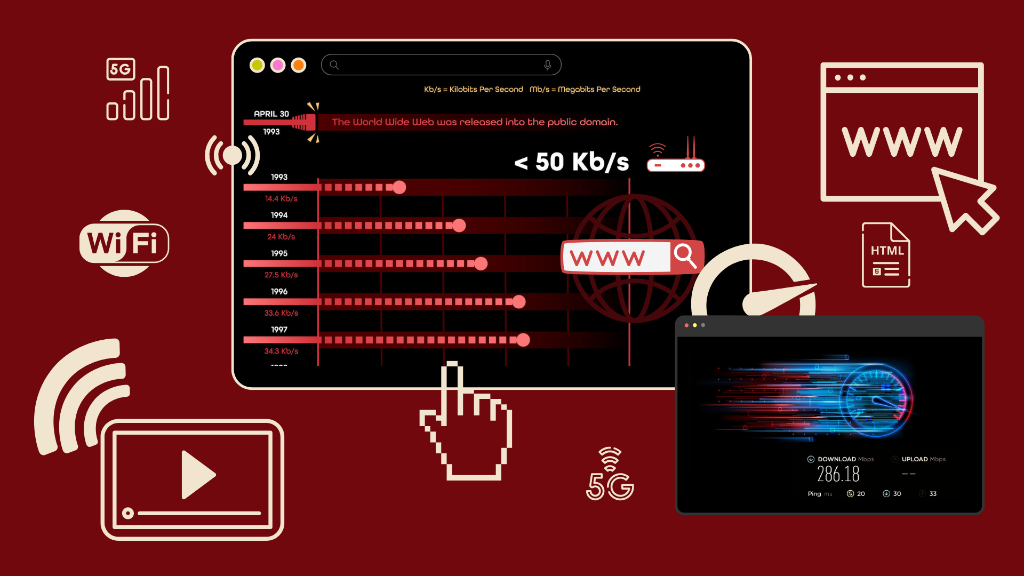
Effect Of Internet Speeds on Various Applications

By Ujjwal Murmu
How to Generate Credit Card Number And its Uses? Information Ujjwal Murmu
March 9, 2022 2 min read

How to Generate Credit Card Number And its Uses?

By Ujjwal Murmu
nBERinfo

"In-depth guides, custom ROM installation walk-throughs, Android rooting tutorials, and system troubleshooting."

JOIN NOOBERINFO
LOG IN SIGN UP

Quick Links

Home Blog All Categories Blog Authors About Us Li Nex Neo YT Videos & Reviews Contact Us

Company

About Publication Contact Sitemap RSS Feed Wanna write for us? Guest Posting

Legal

Terms of Service Privacy Policy Cookies Policy DMCA Takedown Disclaimer Affiliate Disclosure

Get in touch

Report Bug / Query

Copyright © 2026 Noober Info. All Rights Reserved. Developed by Ujjwal MurmuUjjwal Murmu.