
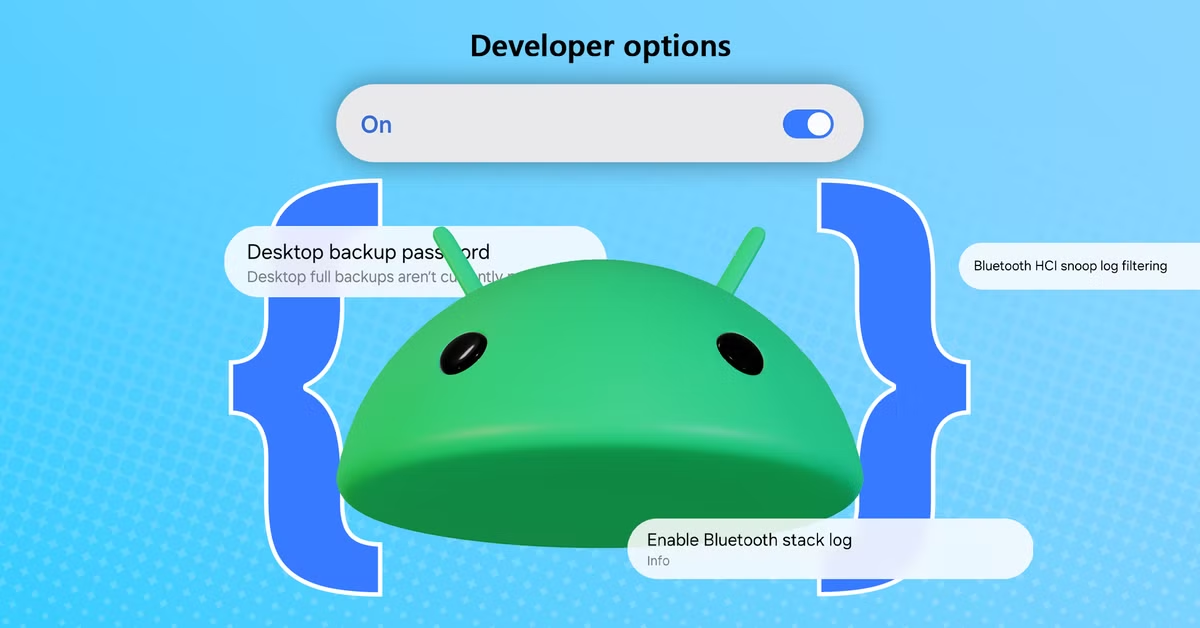

Want to turn on the Developer Settings? It's very simple & easy to do. With Developer Settings Turned On you can do a simple tweak to your Phone. So let's follow the steps to do it.
Follow the steps below as shown in the pictures:--
# Step 1 : Go to Settings

# Step 2 : Now scroll down a bit and search for 'About Phone' ( For Custom UI Phones like Xiaomi, Oppo & Vivo 'About Phone' is under the 'Additional settings'. )

# Step 3 : Open 'About Phone' and search for 'Build Number'

# Step 4 : Tap on 'Build Number' 7 to 10 times in a row until you see a message that says 'No need you are already a Developer'.

# Step 5 : Now go back once to the main 'Settings' and you should see 'Developer Options' just above 'About Phone'. ( For Custom UI Phones like Xiaomi, Oppo & Vivo 'About Phone' is under the 'Additional settings'. ) (For Android 9 & Above you should see in 'System' section.


Now how would you tweak your phone? Well, it's fairly simple. But you can only tweak Android Animations & CPU & GPU Game Mode etc. Now let's Begin.
1. Trust agents only extend unlock : This option will keep your device unlocked while driving or when you are in movement and when you get still and stop it will lock your device again. It is very useful if you travel a lot and you get irritated by unlocking your phone again and again. ( This option may also present in Security section.
2. Local Terminal : It enables a terminal app that offers local shell access. It is mainly used for executing codes ( Only for Advanced Users )
3. Select mock location app : This option fakes your device location. This option is very handy if you don't want any app to track you.
4. Android Debugging : Enable the ADB interface to execute or run commands through the computer. ( only for Advanced users )
5. Enable Wi-Fi verbose logging : This option increases Wi-Fi logging level, show per SSID RSSI in Wi-Fi picker.
6. Mobile data always active : As you can already understand by this title. It keeps mobile data active even when the Wi-Fi is turned on for fast network switching.
7. Tethering hardware acceleration : It helps in Network hardware acceleration.
8. Default USB Configuration : As you can already understand by the title. Default transfer method whenever you plug in your phone to PC using Data Cable.
9. Disable absolute volume : This feature very very useful if you use wireless devices a lot like headphones. If you get unacceptably High or Low volume then simply turn ON then turn it OFF while your headphone is disconnected. Then forget your Bluetooth device i.e. headphones. Then Reboot your phone and again try connecting your device. Now the volume issue must have been solved.
10. Bluetooth AVRCP version : Select the highest version for high-quality audio for Bluetooth devices. You can also select your desired codecs and sample rate and audio channels. Keep all in high for high quality Bluetooth sound.
11. Show taps : As you can already tell by the title. This option will your the taps that you make on phone. It's very interesting if you do screen recording a lot for a demonstration.
12. Windows animation , Transition animation , Animator Duration scale : Keep on 0.0x for fast loading and fast animation. Usually helps with slow snail phones. Keep on 0.5x for slight animation or you can simply turn OFF ( 0.0x ) for Windows animation, Transition animation, and turn ON Animator Duration scale to ( 0.5x ) ( Recommended ). For balanced animation.
13. Force 4x MSAA : Enable 4x MSAA in OpenGL ES 2.0 apps. Basically, this option will enable the Smartphone chipset feature to boost App or Game. It will accelerate it for a smooth experience but at the same time, it will also drain your battery fast. So make sure to turn it off when your work is done.
14. Set GPU Renderer : Set a GPU Render Engine for Apps.
15. Don't keep activities : Destroy every activity as soon as the user leaves it.
16. Background Process Limit : You get it right? You can set a limit on Apps that are running in the background. This may help in battery saving.
17. Force allow apps on external : Basically you can transfer your apps data to your SD Card if you are low on Internal Storage.
18. Force activities to be resizable : Make all activities resizable for multi-window, regardless of manifest values. This means you can resize windows that are free-form or in split-screen. You can resize them and close them.
19. Enable freeform winows : This option gives you Windows OS feel. You can resize and closewindows just like Windows OS. This can be very useful in Android Tablet.
20. Force Desktop mode : Force experimental desktop mode on secondary displays. That means you can this option when you connect with a secondary screen or secondary monitor.
Extra : Bubbles : Available only for Android 10 users and above. This option makes any chat app in the form of a bubble just like Facebook Messenger. This feature was adopted from Facebook Messenger.
There are more settings here inside Developer Options. If you want to Root your phone you can enable OEM Unlock for unlocking Bootloader. These options were the only that are used widely not by all but by most of the people who do experiments with their phones.
You Might Also Like: How to Clear Cache on Android 10 and Android 11


Comments (0)
Syncing authorization...