
Noober Info
All Fixesguides and tutorialsAndroidguides and tutorialsAndroid Apps and Gamesguides and tutorialsCustom MODguides and tutorialsCustom ROMguides and tutorialsInformationguides and tutorialsInternet and Webguides and tutorialsMagiskguides and tutorialsPhone Fixesguides and tutorialsRecoverguides and tutorialsSmartphonesguides and tutorialsTech Newsguides and tutorialsWindows Solutionguides and tutorials
Home Blog About Publication Contact Us
TELEGRAM
Articles
Noober Info
EXPLORE
Trending Guides
AI & ROOT Tools
Tech Blog
Author Mode
STAY UPDATED
Push Notifications
Weekly Newsletter
GET MOBILE APP
Download on the App Store
GET IT ON Google Play
Buy me a Coffee
TRY AI GENERATOR
Home
Information
How to Edit/Write or Modify "Hosts" file in Windows 10 PC
October 7, 2020
Follow on Google News

How to Edit/Write or Modify "Hosts" file in Windows 10 PC

How to Edit/Write or Modify "Hosts" file in Windows 10 PC

Ujjwal Murmu
Ujjwal Murmu AUTHOR
Global • 2 min read
PUBLISHED October 7, 2020
UPDATED October 7, 2020
LISTEN TO THIS ARTICLE Ready to listen
Informationcategory guides
How to Edit/Write or Modify "Hosts" file in Windows  10 PC


So you are trying to modify or edit the "hosts" file in your Windows 10 or lower versions of Windows PC/Laptop. So I guarantee you that you will be able to edit or modify "hosts" file with this method that I'm going to tell you in this video.

Let's do it step by step:---

# Step 1 : Go to the file location of the "hosts" file. The location is C:WindowsSystem32driversetchosts. 

# Step 2 : Copy hosts file to any location of choice. For example, here let's copy it to Desktop and Paste there. 

# Step 3 : Copy and Paste the hosts file in the same Desktop Location for Backup purpose.

# Step 4 : Right-click on hosts file and select open with 'Notepad'.

# Step 5 : Here Add or Remove the line that you want to insert into hosts file. 

# Step 6 :  Finally press Ctrl + S to save the hosts file.

# Step 7 :  Now Copy and Paste the hosts file to its hosts directory. Here C:WindowsSystem32driversetchosts. 

This was very easy to do. If you still can't modify then Right-click on the 'etc' folder and press Alt + Enter for folder properties. Now you could see the Security section in click on it and there will see to manage the permission for APPLICATION PACKAGE. Click on 'Advanced'. Now tick on modify, full control and execute and hit OK.


In this way, you can modify your host but make sure to back it up first. If anything goes wrong you can always restore it.
Was this article helpful?

Did you like the article, or was it helpful? Let us know your opinion by voting on 'Yes' or 'No'. Provide your feedback as well if you would like!
Ujjwal Murmu

Ujjwal Murmu

Author & Blogger

Passionate Android enthusiast, custom ROM developer, and tech blogger. Helping you unlock your device's potential with advanced guides, troubleshooting tutorials, and rooting walkthroughs.

ENJOYED THIS ARTICLE?

Join our newsletter to get the latest Android guides, rooting tutorials, and custom ROM updates directly in your inbox.

← PREVIOUS POST Computer (Windows) Keyboard Shortcuts [You Must Know] in 2020
NEXT POST → How To Fix Telegram "Not Connecting" on Mobile Data or WiFi

Comments (0)

Syncing comments authorization state...

Loading comments...

Related Documentation

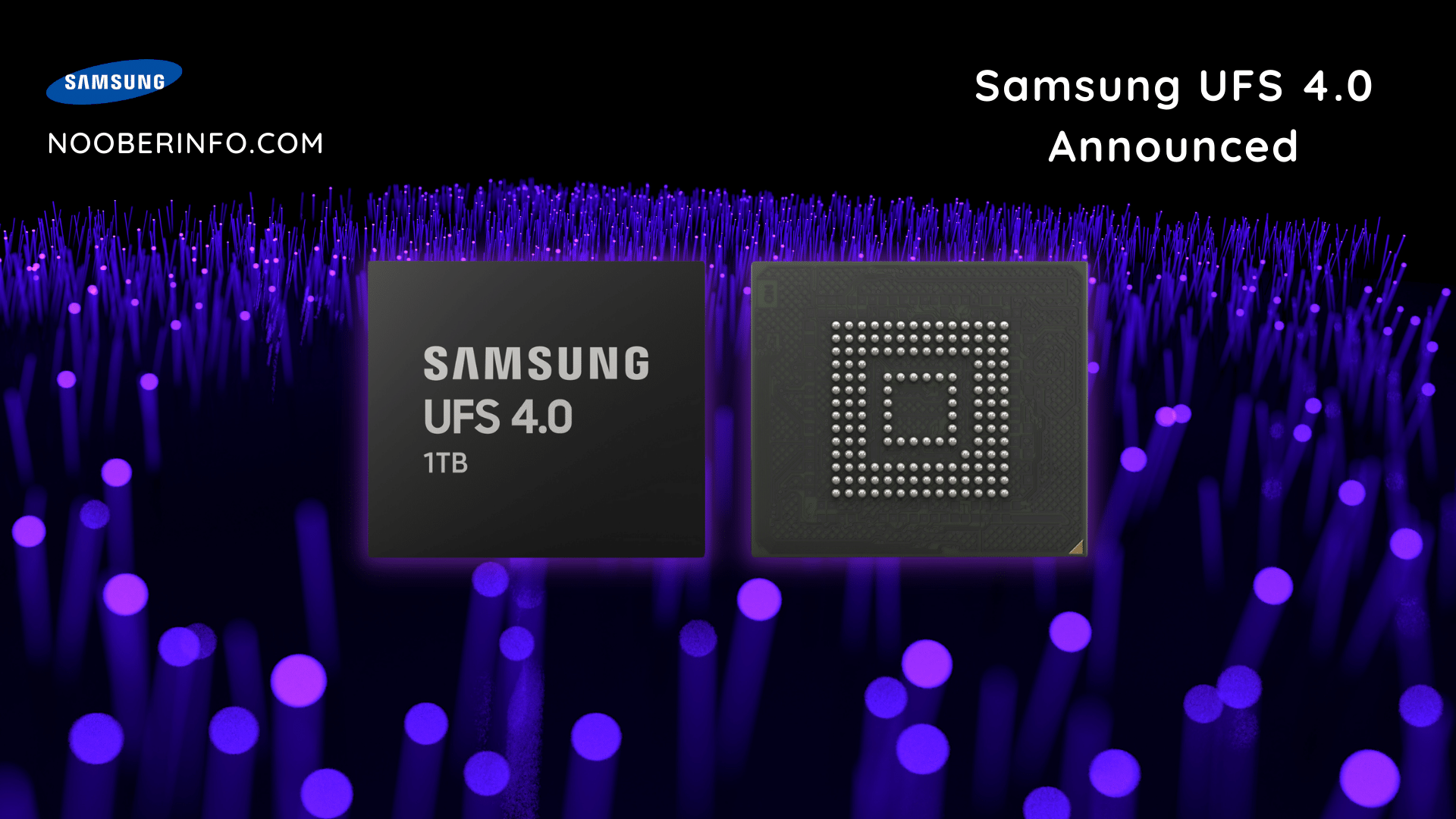
UFS 4.0 Technology announced – developed by Samsung Information
May 17, 2022 3 min read

UFS 4.0 Technology announced – developed by Samsung

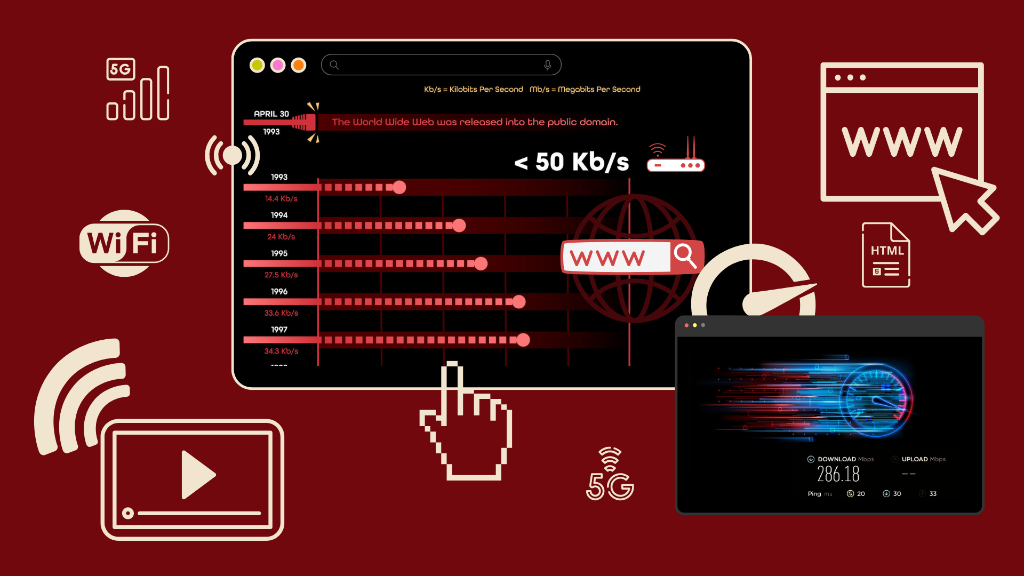
Effect Of Internet Speeds on Various Applications Information
March 30, 2022 5 min read

Effect Of Internet Speeds on Various Applications

How to Generate Credit Card Number And its Uses? Information
March 9, 2022 2 min read

How to Generate Credit Card Number And its Uses?

nBERinfo

"In-depth guides, custom ROM installation walk-throughs, Android rooting tutorials, and system troubleshooting."

Quick Links

Home Blog About Us Li Nex Neo YT Videos & Reviews Contact Us

Company

About Publication Contact Sitemap RSS Feed Wanna write for us? Guest Posting

Legal

Terms of Service Privacy Policy Cookies Policy DMCA Takedown Disclaimer Affiliate Disclosure

Get in touch

Report Bug / Query
JOIN NOOBERINFO
LOG IN SIGN UP

Copyright © 2026 Noober Info. All Rights Reserved. Developed by Ujjwal Murmu.