
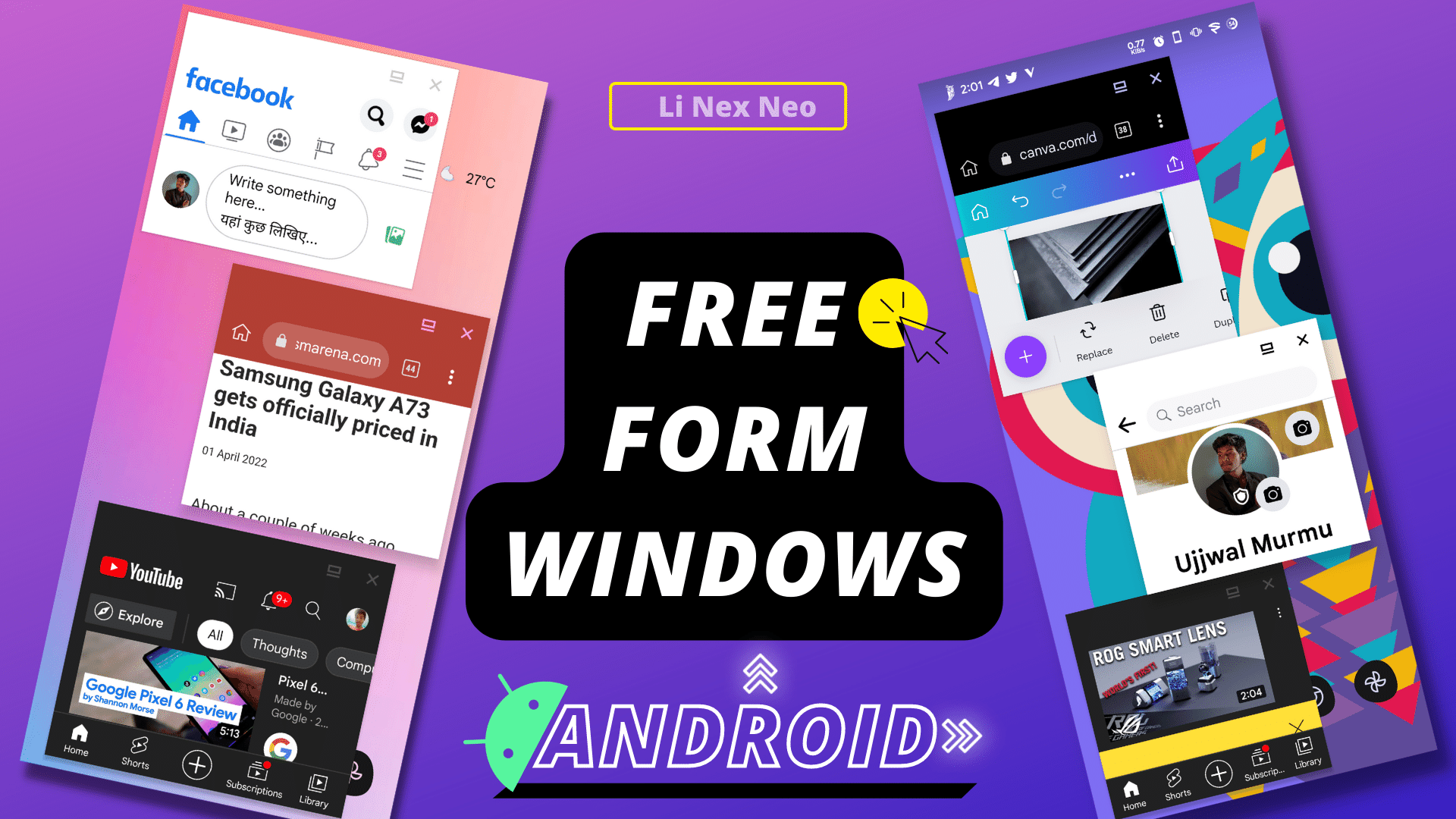
What is Enable Freeform windows?
Have you ever thought of Multiple Windows open simultaneously in Android? If Yes, you might already be digging about how to do it just like in Windows Operating System.
Well, Of course, you can Multitask in Android like Windows OS. You can open multiple Windows to perform Multiple Tasks simultaneously.
This Multiple Windows in Android is a feature known as Free Form Windows. You can use Multiple Apps Simultaneously with Free Form Windows Feature.
How to Enable Freeform Windows Developer Options: Enable Freeform Size compact Android 11
So how do you enable FreeForm Windows in Android? To Enable FreeForm Windows in Android 12 or below, you must enable Developer Options before, you can enable FreeForm Window mode.
To Enable FreeForm Follow the steps below:
Step 1: Go to System Settings.
Step 2: Then, inside System Settings, Navigate to About Phone.
Step 3: In About Phone of System Settings, Enable Developer Options. If you don’t know how to enable it, follow this guide to Enable Developer Options in Android.
Step 4: After enabling Developer Options, Open the Developer Options settings. To do so, Navigate to this location.
Stock Android: Settings > System > Developer Options
Or
Settings > Developer Options
Custom UI (MIUI, Funtouch, ColorOS, Realme UI): Settings > Additional Settings > Developer Options
Step 5: Inside Developer Options, Scroll to the last bottom and Enable FreeForm Windows and Force Activities to be Resizable. Also, enable ‘Enable Freeform size compact’ if available.
Step 6: After enabling these settings, Reboot your device.
Congratulations 🎉 You have successfully enabled FreeForm Windows in Android.
How to use Freeform Windows in Android 10 – and Above?
To use FreeForm Windows in Android 10 above, you must enable Developer Options and enable FreeForm Windows Settings as well. Then you will be able to use Free Form windows.
Follow the Steps to use FreeForm Windows in Android 12 and below:
Step 1: Open Apps that you want in FreeForm Windows.
Step 2: Now, open the Recent Apps Windows Tab by tapping the Recent button or Swipe Up Gesture.

Step 3: Tap and hold the Window and tap on the FreeForm Window option.

Step 4: Again, Open Recent Windows and Tap and hold on to the App Window, then Tap on the FreeForm Window option to enable it.
Step 5: Do these settings according to your requirement for Multi-Window of how many Apps you want to use Apps in FreeForm Window. For Example, 3 Apps to use in FreeForm mode.
Step 6: After Enabling FreeForm Windows in Recent Apps Window, Minimise Everything.
Step 7: Now, Open the App drawer and tap on Apps, that you have enabled FreeForm Window. You can also open Apps from the Homescreen Apps shortcut to open them in FreeForm mode.
In this way, you have succeeded Opening Apps in FreeForm mode. This is how to enable and use FreeForm Windows in Android.
If you want to Close Windows from FreeForm mode, then tap on the (X) button to close them from FreeForm Windows, and next time, when you open those same Apps, they will open as always in usual screen mode.

To move any App from FreeForm mode to Full-Screen mode, tap on the Full-Screen button to open them in FullScreen Mode.

I hope you are enjoying your FreeForm Multi Windows in Android 12 and below. But FreeForm Windows would be more fun if you use this feature on a Tablet because Tablets have a larger screen than Smartphones.
If you still do not understand how to enable Freeform Window and use it, you could also watch the video in that I have explained the same thing but with practical.
Updated Video 2022
Old Video 2022
You Might Also Like: How to Add Google Discover feed to Homescreen in Android
Freeform Windows Android 10 not working
If your phone has Android 9 or a higher version running on it, the FreeForm feature is already there in Developer Options.
But for some reason, Custom Skin UI Vendors like Xiaomi, Vivo, Oppo, and Realme have disabled this feature. Otherwise, it should work fine as usual.
Because FreeForm Windows features support on Android version 7 Nougat to Android version 12 Snow Cone, Android 7 and 8 might be buggy. But on Android version 9 and higher should work fine.
You Might Also Like: Top 5 Best Android Browsers with Chrome Extensions Support

![How to get Unlimited Google Photos Storage in Android for free [Root]](/uploads/2022/06/Unlimited-Google-Photos-Storage-for-Free.png.avif)
Comments (0)
Syncing authorization...