
What is Disk Drill?
Disk Drill is a Windows or Mac program to recover deleted files from an SD Card or Hard Drive with a 90% of recovery rate. Disk Drill recovers files safely and is very handy to use. You can recover Photos, Videos, Audio, and Document files like PDF or Word, Excel files.
How To Use Disk Drill To Recover Deleted Files
So your files are deleted right? or you deleted them by mistake. So how do you intend to recover them? Well, it's simple. Let's move forward to know more.
To recover deleted files, let's first know where all the deleted files are stored.
A memory or a flash drive or hard drive consists of many blocks where files are stored in each block bit by bit or byte by byte. All these blocks make up the divided partition. So in memory of flash drive or hard drive, there can be many partitions but usually, you can say there are mainly two partitions, which are Active and Inactive Partitions.
All your data is stored in these blocks in the form of bits or bytes. So the data you see is in Active Partition and which you can't see are stored in the Inactive partition, which are deleted files.
In an Active partition, it is where your actual files are stored, and in an Inactive partition, it is where your deleted files are stored it is just the opposite of an active partition.
So now you know where deleted files are stored and how.
Now let's recover these deleted files by using a Recovery Program.
Disk Drill SD Card Recovery
Along with Hard Drives and SSD, you can also recover deleted files from SD Card or so-called Memory Card. Just plug in SD Card into PC or Laptop using a Card Reader and follow the steps below to recover deleted files.
Recover deleted photos or any files
To recover deleted data follow these steps.
#1. First of all, download and install Disk Drill Recovery Software from the given link.
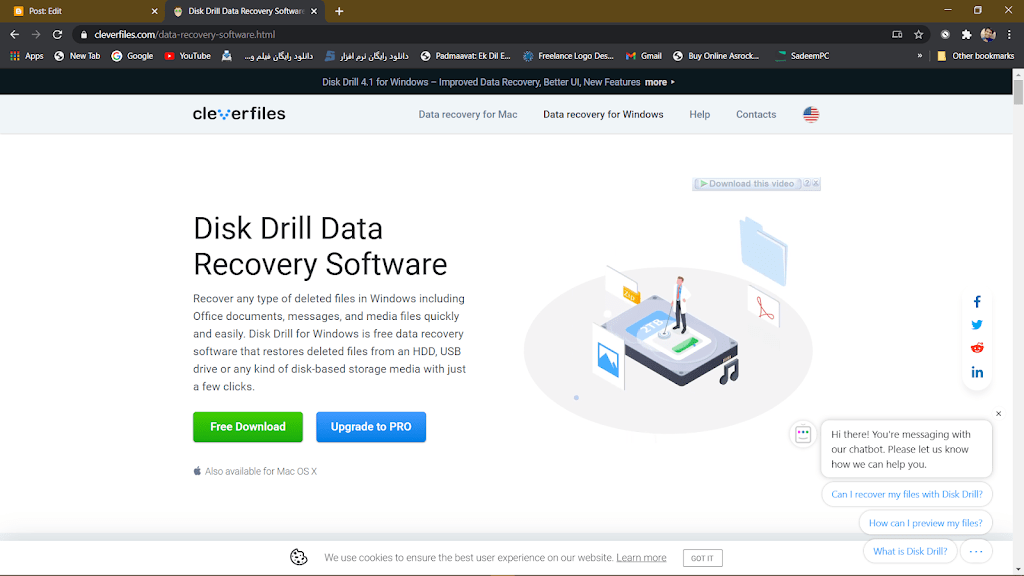
#2. Install Disk Drill on your PC or laptop.
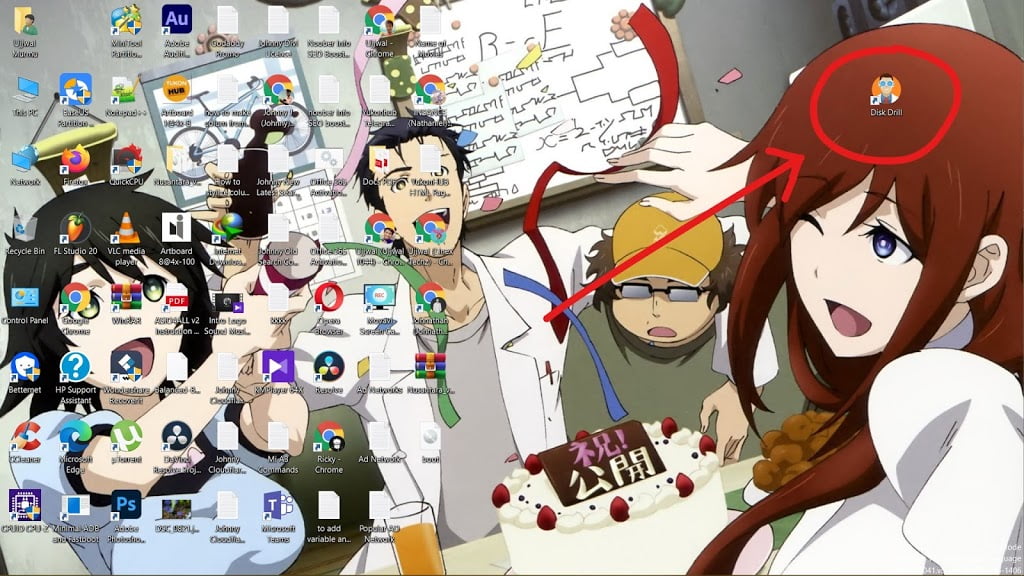
#3. Insert the drive or an external drive to the PC, which you want to recover files from.
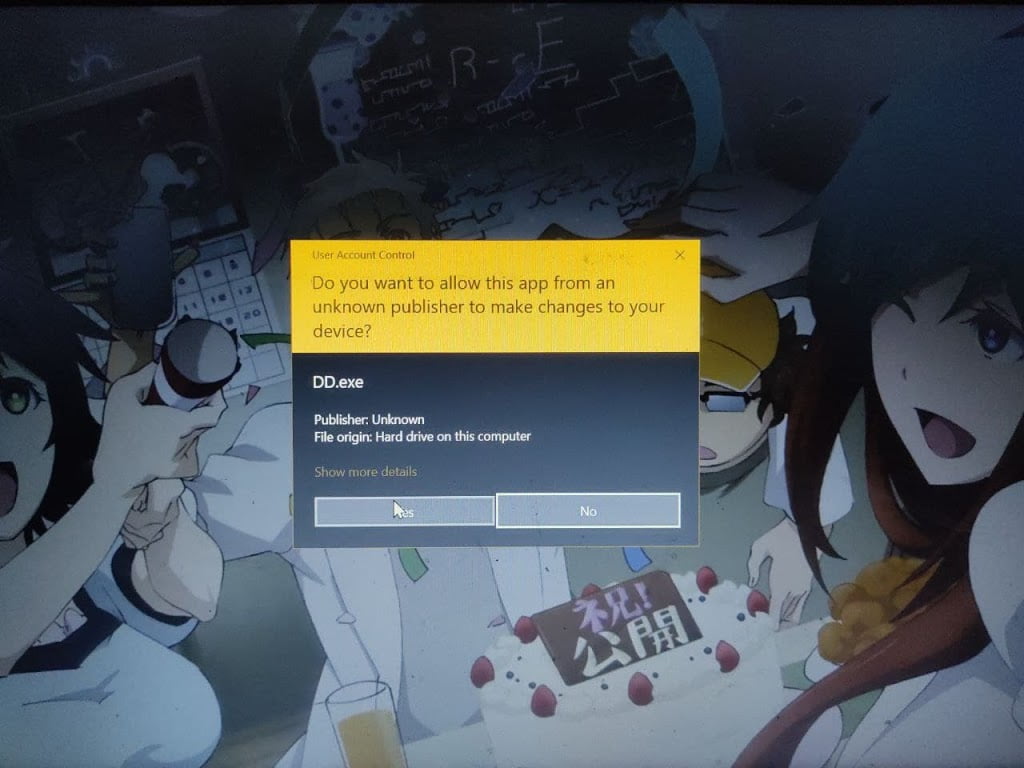
#4. After installing Disk Drill, run the program as administrator.
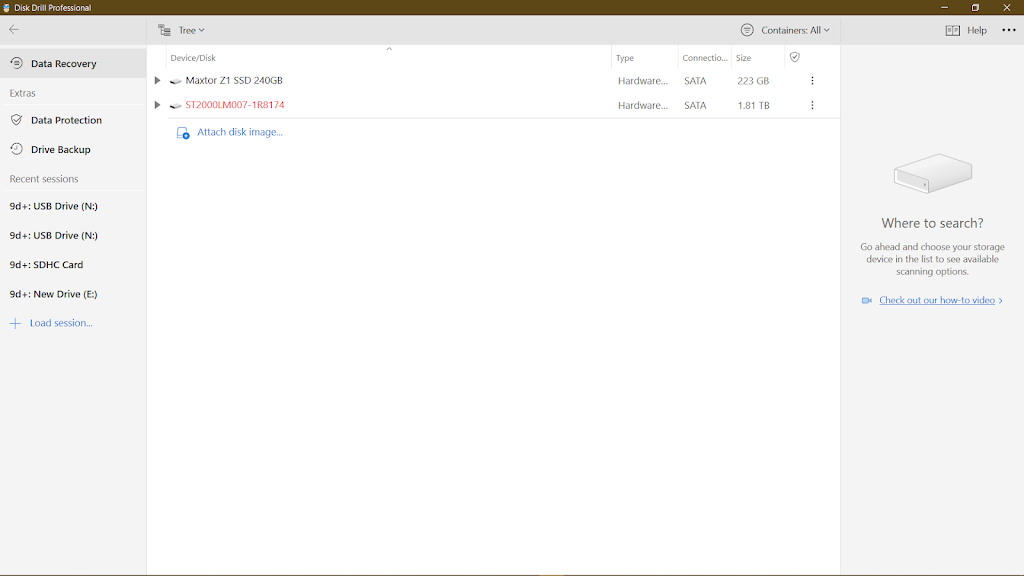
#5. Here you will see all the drives, choose the drive that you want to recover from.
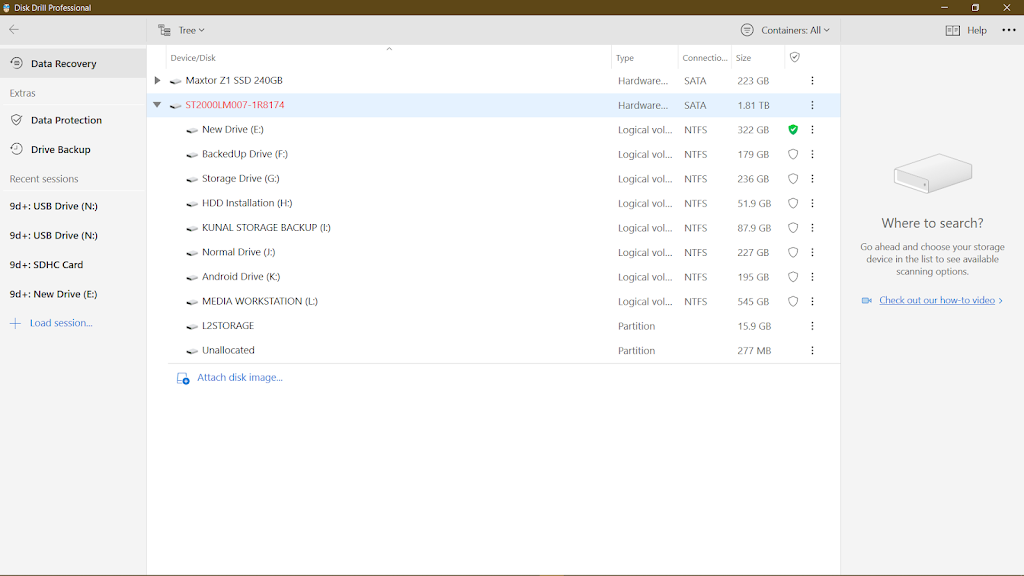
#6. On the right side of the drive, click on the three-dot & Enable Data Protection.
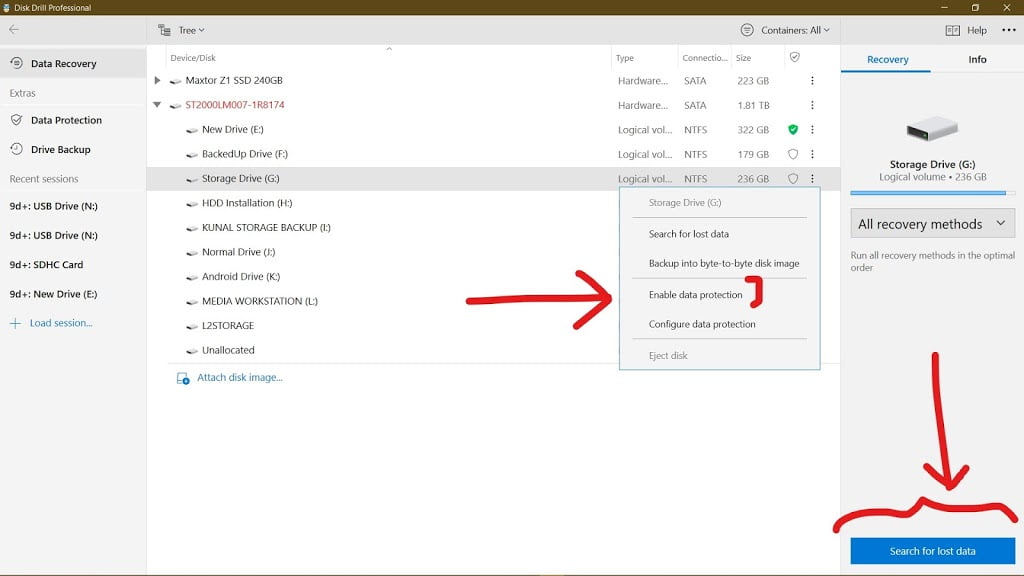
#7. On the right side at the bottom of your program screen, you should see Search Lost Data, just click on that to proceed with scanning the Drive.
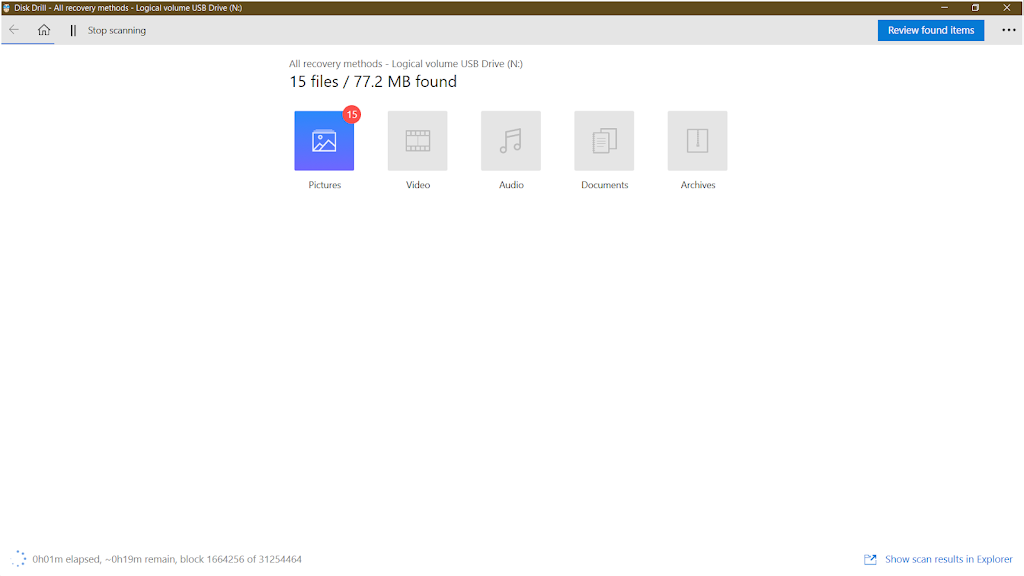
#8. The Program should take some time to scan based on the size of the drive and the deleted files, so wait for it to complete.
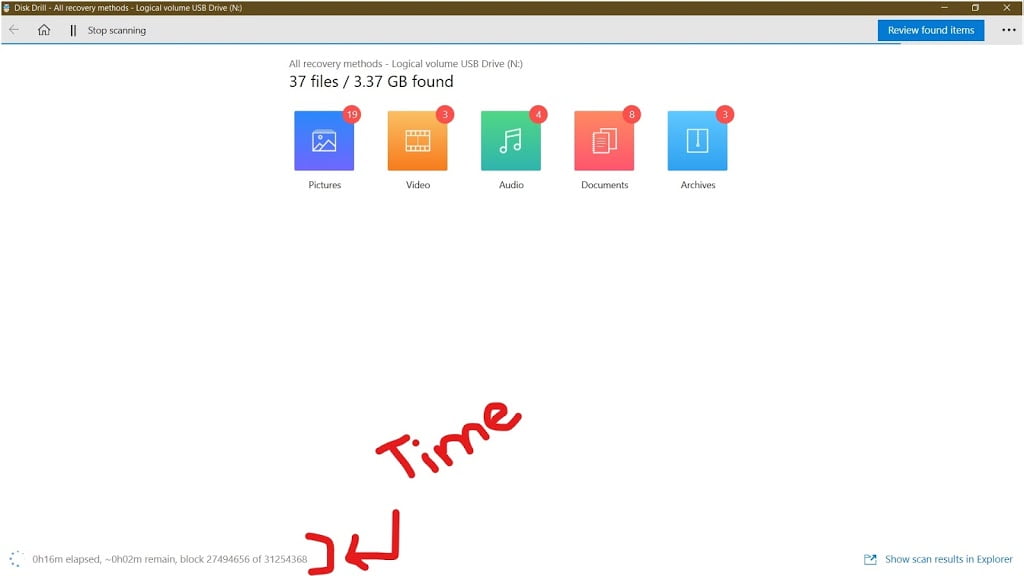
#9. While scanning, you can even check how many files it has found and how many blocks it has searched and found data.
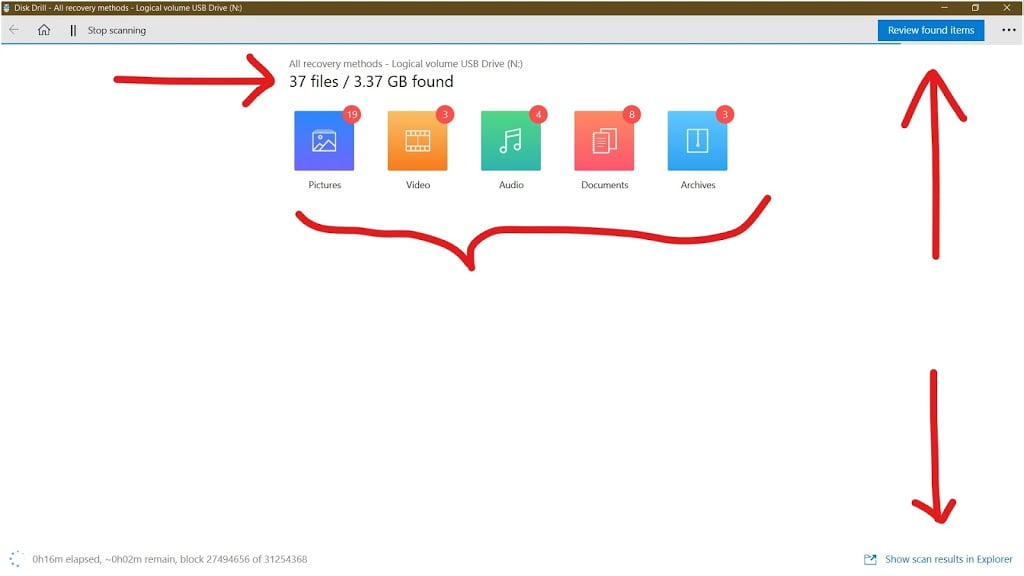
#10. After the searching has been completed, the program will ask you to recover all the files. At the top on the right side, you should see the Recover All Files option, click on it to proceed with recovering the files.
#11. After clicking on Recover All Files, it will ask you to choose a location where all the files will be stored.
Don't select the location or the drive that you are already recovering from. Select other partitions of the hard drive other than the drive you are recovering files from.
#12. Now, go to This PC and choose a drive & make a folder to store all your files.
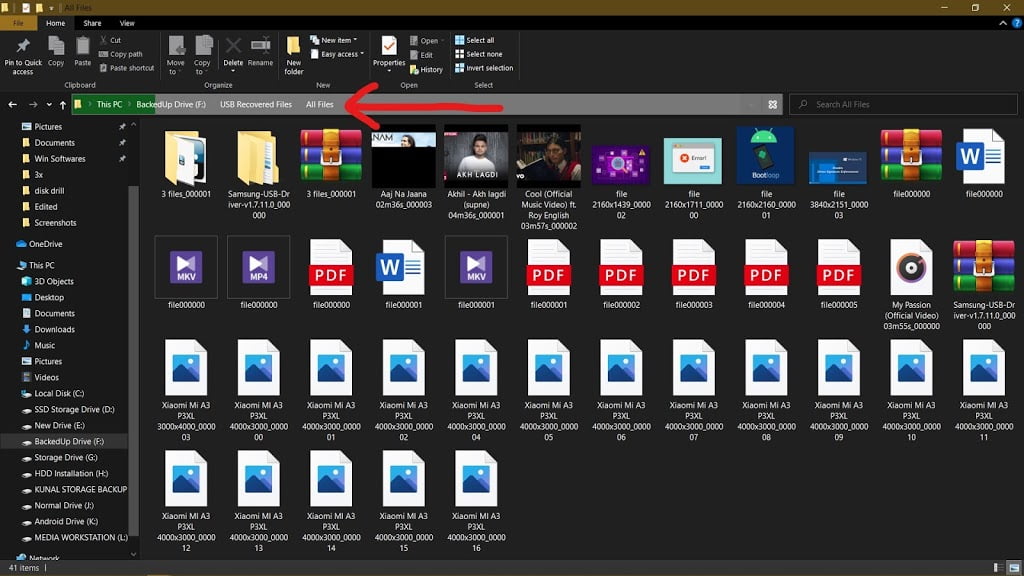
#13. Now go back to the Disk Drill program then choose your location where you have already made a folder then click on OK to continue.
#14. Again click on OK. Wait for a while to recover all files.
#15. Now check all your files if they are working properly or not.
If you want a video guide on how to recover deleted files using Disk Drill then you can watch this video below.
In this way, you can recover all your deleted files from any drive or any partition.
I am not promoting any kind of program, I am just sharing a method to recover deleted files.


Comments (0)
Syncing authorization...